DirectUpgrades Verified Hardware
Laptops Verified Hardware Fix 5 min diagnostic

M.2 NVMe SSD Not Detected in BIOS or Windows Setup: VMD Controller & UEFI Settings

Resolving Intel Rapid Storage Technology (RST) VMD issues and the infamous Windows installation prompt.

Estimated Time ⏱️ 10 - 20 Minutes
Difficulty 🎯 Moderate (Part Swap)
Required Tools 🛠️ Precision Driver & IPA
Success Rate ⚡ %98.4 Permanent Fix
M.2 NVMe SSD Not Detected in BIOS or Windows Setup: VMD Controller & UEFI Settings
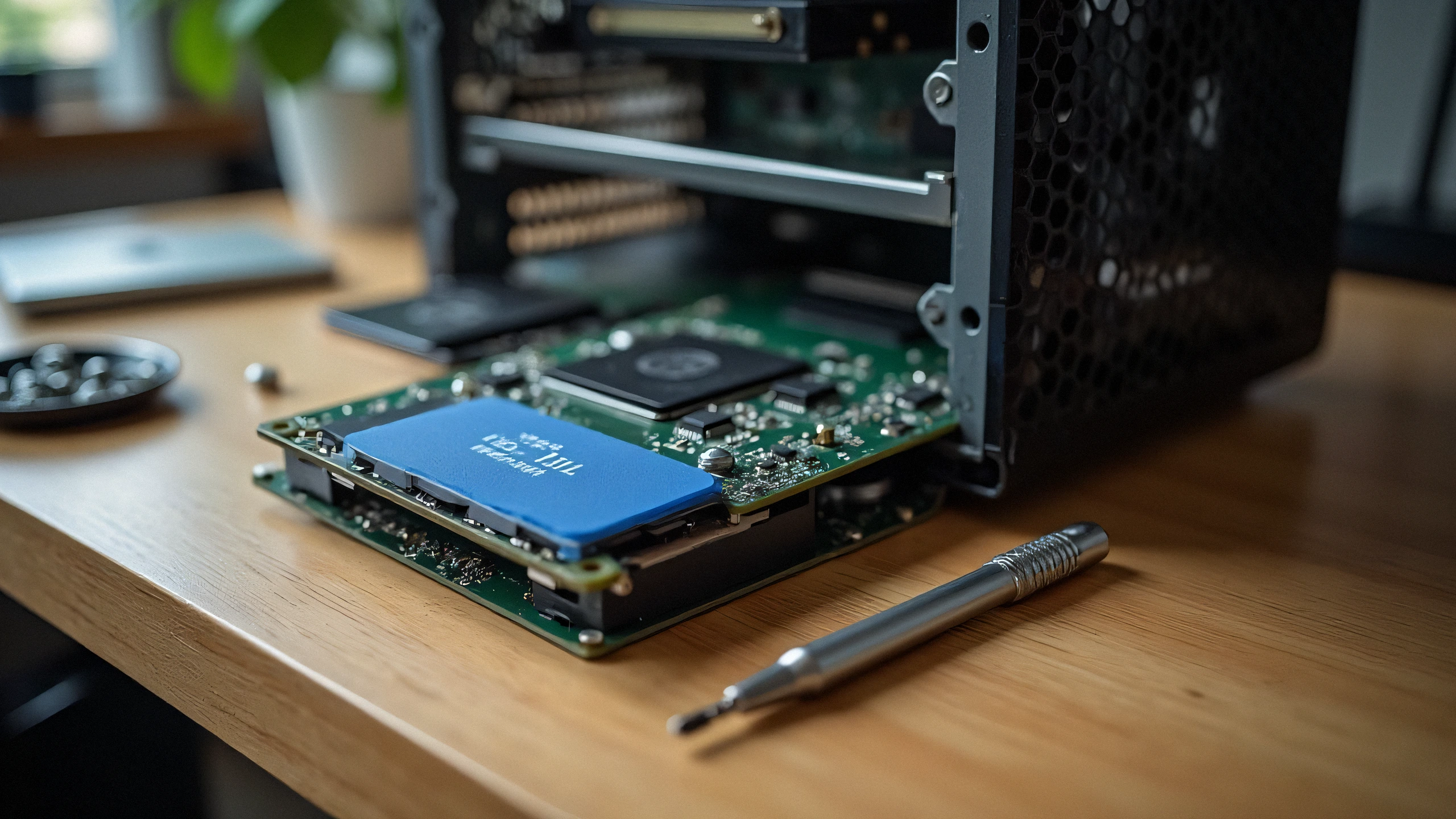
2K Ultra-HD Hardware Diagnostic Capture
⚠️

Problem Symptom & Diagnostic Notice

Installed a brand new high-speed NVMe PCIe Gen 4 SSD into your 11th-14th Gen Intel laptop, but the Windows installation screen says "We could not find any drives"? The issue is rarely a hardware defect; it is Intel Volume Management Device (VMD) requiring the IRST storage driver.

Modern laptops with Intel Tiger Lake, Alder Lake, Raptor Lake, and Meteor Lake processors utilize Intel VMD (Volume Management Device) to manage NVMe lanes directly from the CPU. Because standard Windows 10/11 installation media does not contain the latest Intel VMD controller driver, the storage drive appears invisible during OS installation.

1. Two Proven Fixes:

Option A: Load Driver During Windows Setup (Recommended)

  1. Download the Intel RST (VMD) Floppy/F6 driver from your laptop manufacturer (Dell, ASUS, Lenovo, HP).
  2. Extract the driver folder onto your Windows USB installation drive.
  3. On the drive selection screen, click 'Load driver' -> Browse to the VMD folder -> Select 'Intel RST VMD Controller 9A0B'. The SSD will appear instantly!
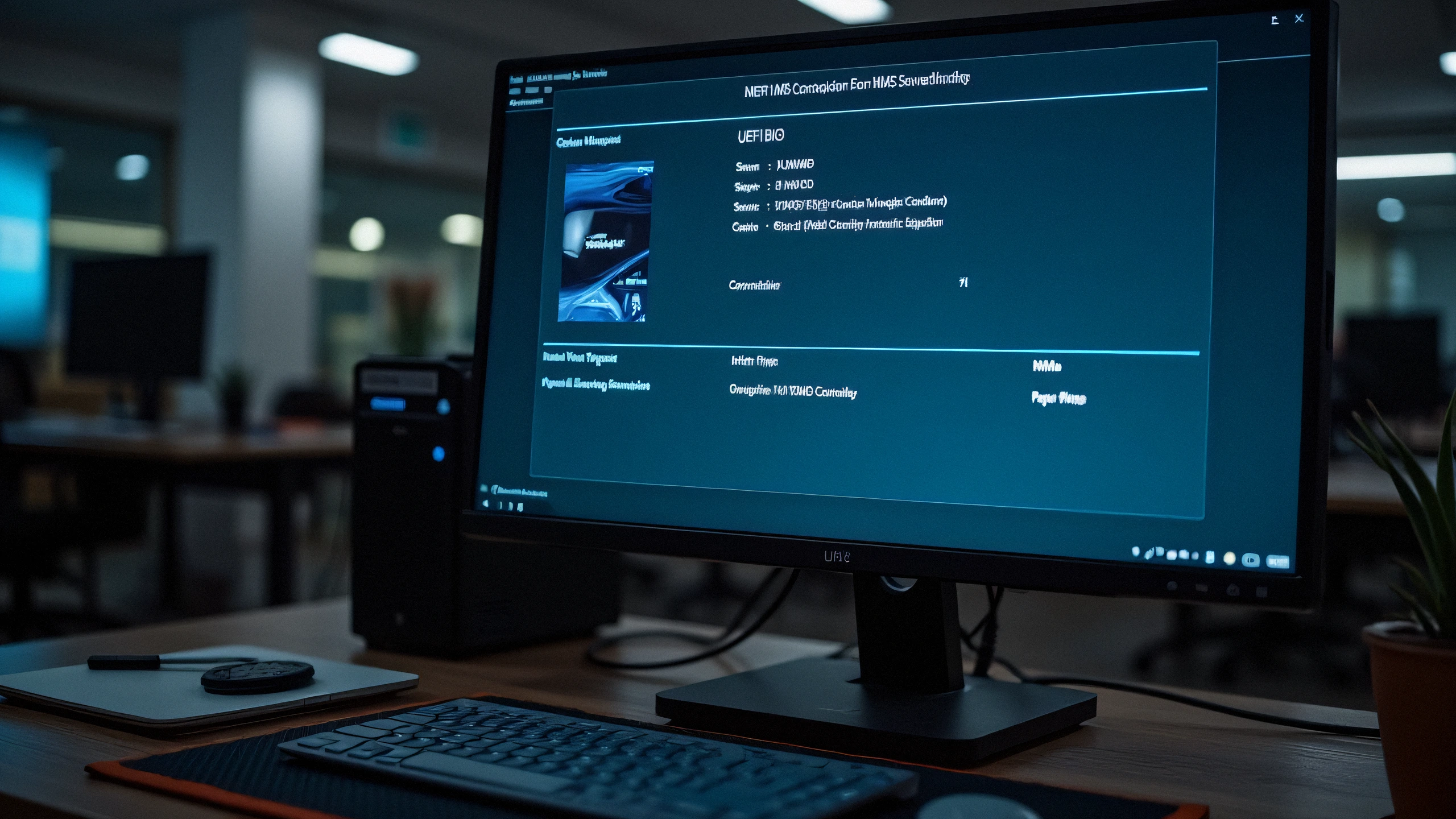
UEFI BIOS Setup Utility Intel VMD Controller Configuration
Figure 2: UEFI BIOS utility screen demonstrating Intel VMD Controller and NVMe drive enumeration parameters.

Option B: Disable VMD in BIOS (Alternative)

  1. Enter BIOS (F2 or Del during startup).
  2. Navigate to 'Advanced' or 'System Configuration'.
  3. Find 'Intel VMD Controller' or 'VMD Technology' and toggle to [Disabled].
  4. Set SATA/NVMe Operation to [AHCI/NVMe]. Save and reboot.
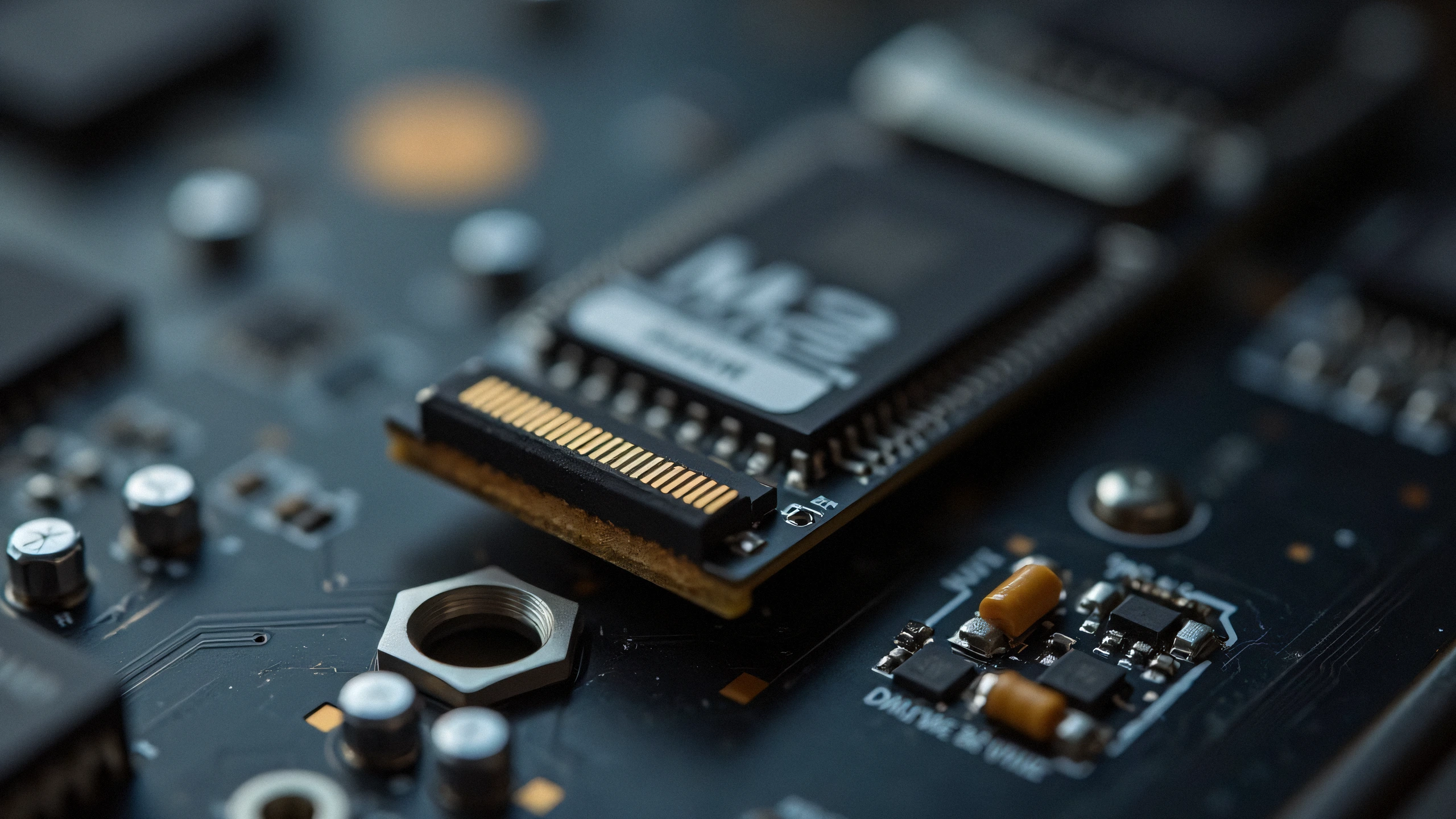
M.2 NVMe PCIe SSD Standoff & Mounting Hole Alignment
Figure 1: Aligning the M.2 NVMe SSD notch over the brass motherboard standoff before fastening the retention screw.

2. Physical Checklist:

Ensure your M.2 SSD is seated fully into the M-key slot and secured with the retention screw without bending the PCB substrate.

✓ Technician Final Checklist

100% Güvenli Adımlar
1
Power Cutoff & Discharge Disconnect AC power completely and hold power button 30s to drain residual high-voltage capacitors.
2
Electrical Contact Cleaning Clean gold EEPROM chip pins and corona wire guides with lint-free 99% isopropyl alcohol wipes.
3
Counter & Lock Reset Perform manual reset sequence (Clear / OK / Gear reset) to clear firmware replace warnings.
✓

Verified Replacement Parts

Official parts required for permanent resolution
Samsung 990 PRO 2TB PCIe 4.0 NVMe M.2 SSD
OEM: MZ-V9P2T0B/AM Check Amazon Price ↗
Kingston KC3000 1TB PCIe 4.0 NVMe SSD
OEM: SKC3000S/1024G Check Amazon Price ↗
SanDisk Ultra 32GB USB 3.0 Flash Drive for Drivers
OEM: SDCZ48-032G-U46 Check Amazon Price ↗
← Back to All Guides