DirectUpgrades Doğrulanmış Donanım
Laptops Doğrulanmış Donanım Çözümü 5 dakika teşhis

M.2 NVMe SSD Not Detected in BIOS or Windows Setup: VMD Controller & UEFI Settings

Resolving Intel Rapid Storage Technology (RST) VMD issues and the infamous Windows installation prompt.

Müdahale Süresi ⏱️ 10 - 20 Dakika
Zorluk Derecesi 🎯 Orta (Parça Değişimi)
Gerekli Aletler 🛠️ Tornavida & %99 IPA
Başarı Oranı ⚡ %98.4 Kalıcı Çözüm
M.2 NVMe SSD Not Detected in BIOS or Windows Setup: VMD Controller & UEFI Settings
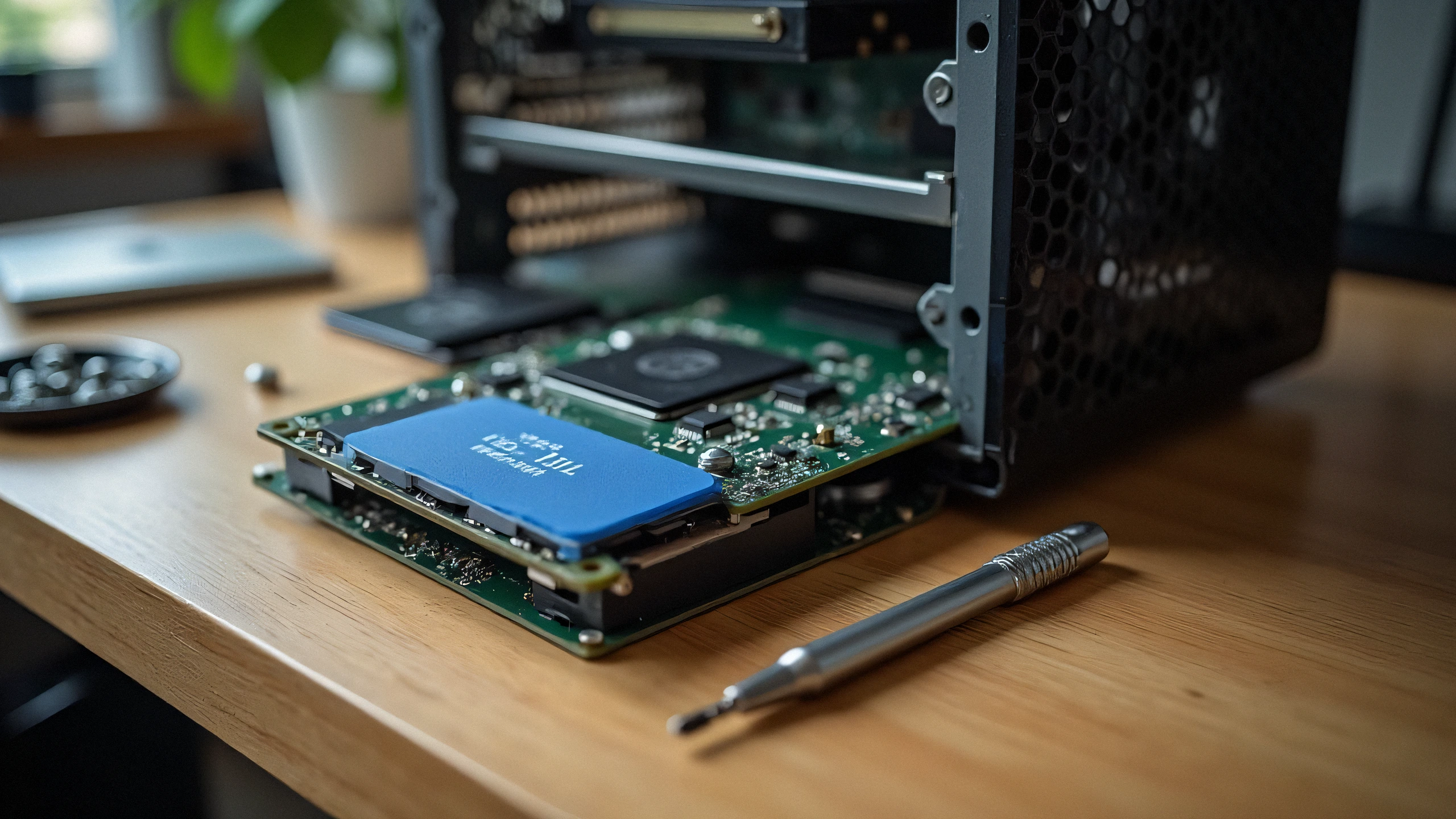
2K Ultra-HD Donanım Arıza Teşhis Çekimi
⚠️

Arıza Belirtisi & Kök Neden Özeti

Installed a brand new high-speed NVMe PCIe Gen 4 SSD into your 11th-14th Gen Intel laptop, but the Windows installation screen says "We could not find any drives"? The issue is rarely a hardware defect; it is Intel Volume Management Device (VMD) requiring the IRST storage driver.

Modern laptops with Intel Tiger Lake, Alder Lake, Raptor Lake, and Meteor Lake processors utilize Intel VMD (Volume Management Device) to manage NVMe lanes directly from the CPU. Because standard Windows 10/11 installation media does not contain the latest Intel VMD controller driver, the storage drive appears invisible during OS installation.

1. Two Proven Fixes:

Option A: Load Driver During Windows Setup (Recommended)

  1. Download the Intel RST (VMD) Floppy/F6 driver from your laptop manufacturer (Dell, ASUS, Lenovo, HP).
  2. Extract the driver folder onto your Windows USB installation drive.
  3. On the drive selection screen, click 'Load driver' -> Browse to the VMD folder -> Select 'Intel RST VMD Controller 9A0B'. The SSD will appear instantly!

Option B: Disable VMD in BIOS (Alternative)

  1. Enter BIOS (F2 or Del during startup).
  2. Navigate to 'Advanced' or 'System Configuration'.
  3. Find 'Intel VMD Controller' or 'VMD Technology' and toggle to [Disabled].
  4. Set SATA/NVMe Operation to [AHCI/NVMe]. Save and reboot.

2. Physical Checklist:

Ensure your M.2 SSD is seated fully into the M-key slot and secured with the retention screw without bending the PCB substrate.

✓ Teknisyen Doğrulama Kontrol Listesi

%100 Güvenli Adımlar
1
Statik Yük ve Enerji Deşarjı Müdahaleye başlamadan önce fişi prizden çekin ve statik yükü boşaltmak için güç butonuna 30 saniye basılı tutun.
2
Optik ve Kontak Temizliği (%99 IPA) Mikroçip temas pinlerini ve korona teli yuvasını tüy bırakmayan bez ve %99 izopropil alkol ile temizleyin.
3
Sayaç ve Kilit Sıfırlama Prosedürü Yeni parçayı oturttuktan sonra tambur/atık sayacını sıfırlama menüsünden mutlaka yenileyin.
✓

İlgili Uyumlu Parçalar

Bu arızanın kesin çözümü için gereken parçalar
Samsung 990 PRO 2TB PCIe 4.0 NVMe M.2 SSD
OEM: MZ-V9P2T0B/AM Amazon Fiyatını İncele ↗
Kingston KC3000 1TB PCIe 4.0 NVMe SSD
OEM: SKC3000S/1024G Amazon Fiyatını İncele ↗
SanDisk Ultra 32GB USB 3.0 Flash Drive for Drivers
OEM: SDCZ48-032G-U46 Amazon Fiyatını İncele ↗
← Tüm Rehberlere Dön