DirectUpgrades Verifierad Hårdvara
Laptops Verifierad hårdvarulösning 5 min diagnostik

M.2 NVMe SSD Not Detected in BIOS or Windows Setup: VMD Controller & UEFI Settings

Resolving Intel Rapid Storage Technology (RST) VMD issues and the infamous Windows installation prompt.

Beräknad tid ⏱️ 10 - 20 Minuter
Svårighetsgrad 🎯 Måttlig (Komponentbyte)
Nödvändiga verktyg 🛠️ Precisionsmejsel & isopropanol
Framgångsgrad ⚡ 98,4% Permanent lösning
M.2 NVMe SSD Not Detected in BIOS or Windows Setup: VMD Controller & UEFI Settings
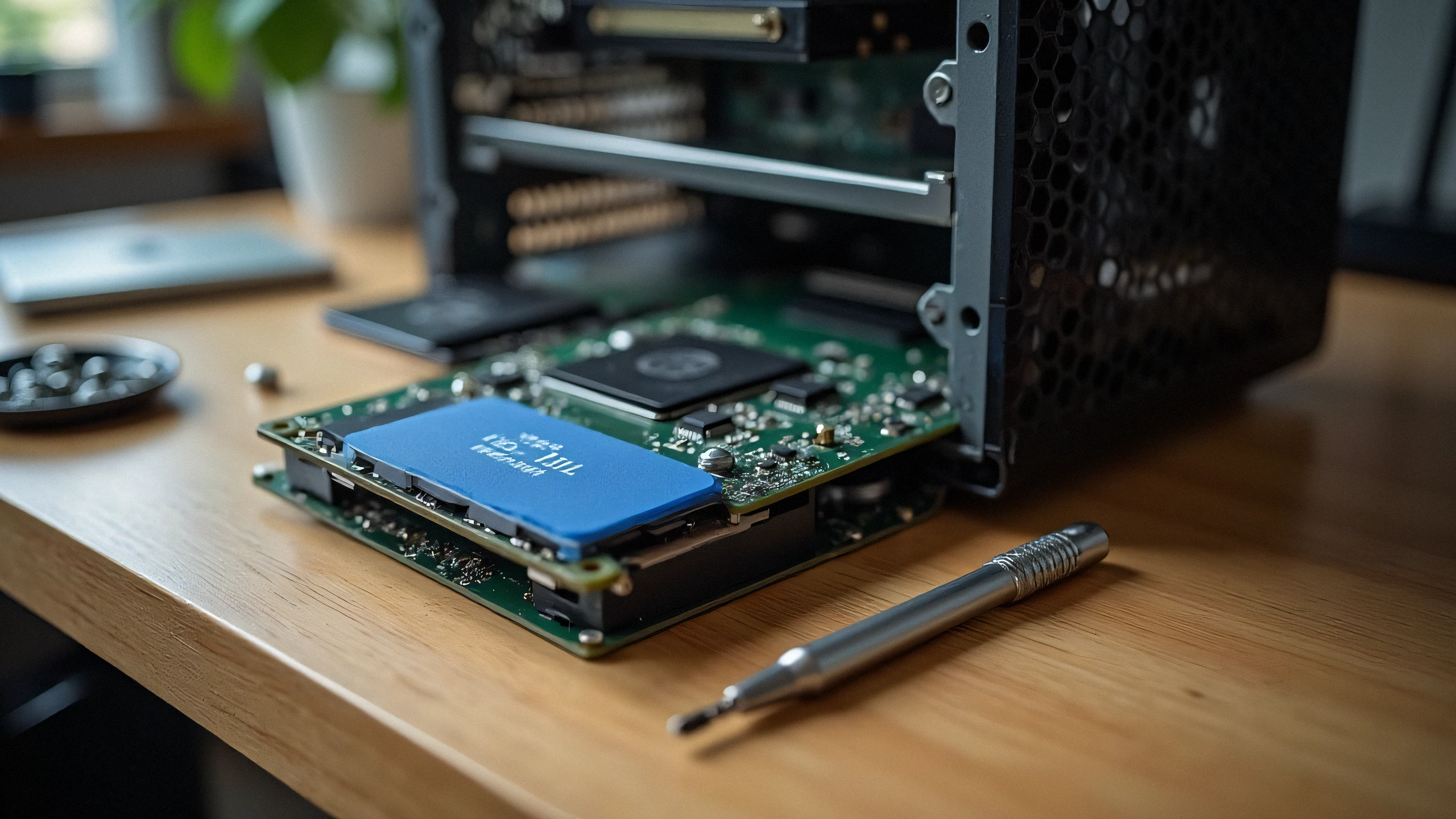
2K Ultra-HD Hårdvarudiagnostisk Bild
⚠️

Felsymtom och diagnosmeddelande

Installed a brand new high-speed NVMe PCIe Gen 4 SSD into your 11th-14th Gen Intel laptop, but the Windows installation screen says "We could not find any drives"? The issue is rarely a hardware defect; it is Intel Volume Management Device (VMD) requiring the IRST storage driver.

Modern laptops with Intel Tiger Lake, Alder Lake, Raptor Lake, and Meteor Lake processors utilize Intel VMD (Volume Management Device) to manage NVMe lanes directly from the CPU. Because standard Windows 10/11 installation media does not contain the latest Intel VMD controller driver, the storage drive appears invisible during OS installation.

1. Two Proven Fixes:

Option A: Load Driver During Windows Setup (Recommended)

  1. Download the Intel RST (VMD) Floppy/F6 driver from your laptop manufacturer (Dell, ASUS, Lenovo, HP).
  2. Extract the driver folder onto your Windows USB installation drive.
  3. On the drive selection screen, click 'Load driver' -> Browse to the VMD folder -> Select 'Intel RST VMD Controller 9A0B'. The SSD will appear instantly!

Option B: Disable VMD in BIOS (Alternative)

  1. Enter BIOS (F2 or Del during startup).
  2. Navigate to 'Advanced' or 'System Configuration'.
  3. Find 'Intel VMD Controller' or 'VMD Technology' and toggle to [Disabled].
  4. Set SATA/NVMe Operation to [AHCI/NVMe]. Save and reboot.

2. Physical Checklist:

Ensure your M.2 SSD is seated fully into the M-key slot and secured with the retention screw without bending the PCB substrate.

✓ Teknikerns slutliga checklista

100% Säkra Steg
1
Strömavbrott och urladdning Koppla ur strömkabeln helt och håll strömbrytaren intryckt i 30 sekunder för att ladda ur kondensatorer.
2
Rengöring av elektriska kontakter Rengör EEPROM-kontaktstiften och koronatrådsguiderna med en luddfri trasa och 99% isopropanol.
3
Återställning av räknare och spärrar Utför återställningssekvensen (Clear / OK) för att rensa varningar om komponentbyte i firmware.
✓

Relaterade kompatibla delar

Officiella delar som krävs för permanent lösning
Samsung 990 PRO 2TB PCIe 4.0 NVMe M.2 SSD
OEM: MZ-V9P2T0B/AM Kontrollera pris på Amazon ↗
Kingston KC3000 1TB PCIe 4.0 NVMe SSD
OEM: SKC3000S/1024G Kontrollera pris på Amazon ↗
SanDisk Ultra 32GB USB 3.0 Flash Drive for Drivers
OEM: SDCZ48-032G-U46 Kontrollera pris på Amazon ↗
← Tillbaka till alla guider