DirectUpgrades Provjereni Hardver
Laptops Provjereno hardversko rješenje 5 min dijagnostike

M.2 NVMe SSD Not Detected in BIOS or Windows Setup: VMD Controller & UEFI Settings

Resolving Intel Rapid Storage Technology (RST) VMD issues and the infamous Windows installation prompt.

Procijenjeno vrijeme ⏱️ 10 - 20 Minuta
Razina težine 🎯 Umjereno (Zamjena dijela)
Potreban alat 🛠️ Precizni odvijač & IPA
Stopa uspješnosti ⚡ 98,4% Trajno rješenje
M.2 NVMe SSD Not Detected in BIOS or Windows Setup: VMD Controller & UEFI Settings
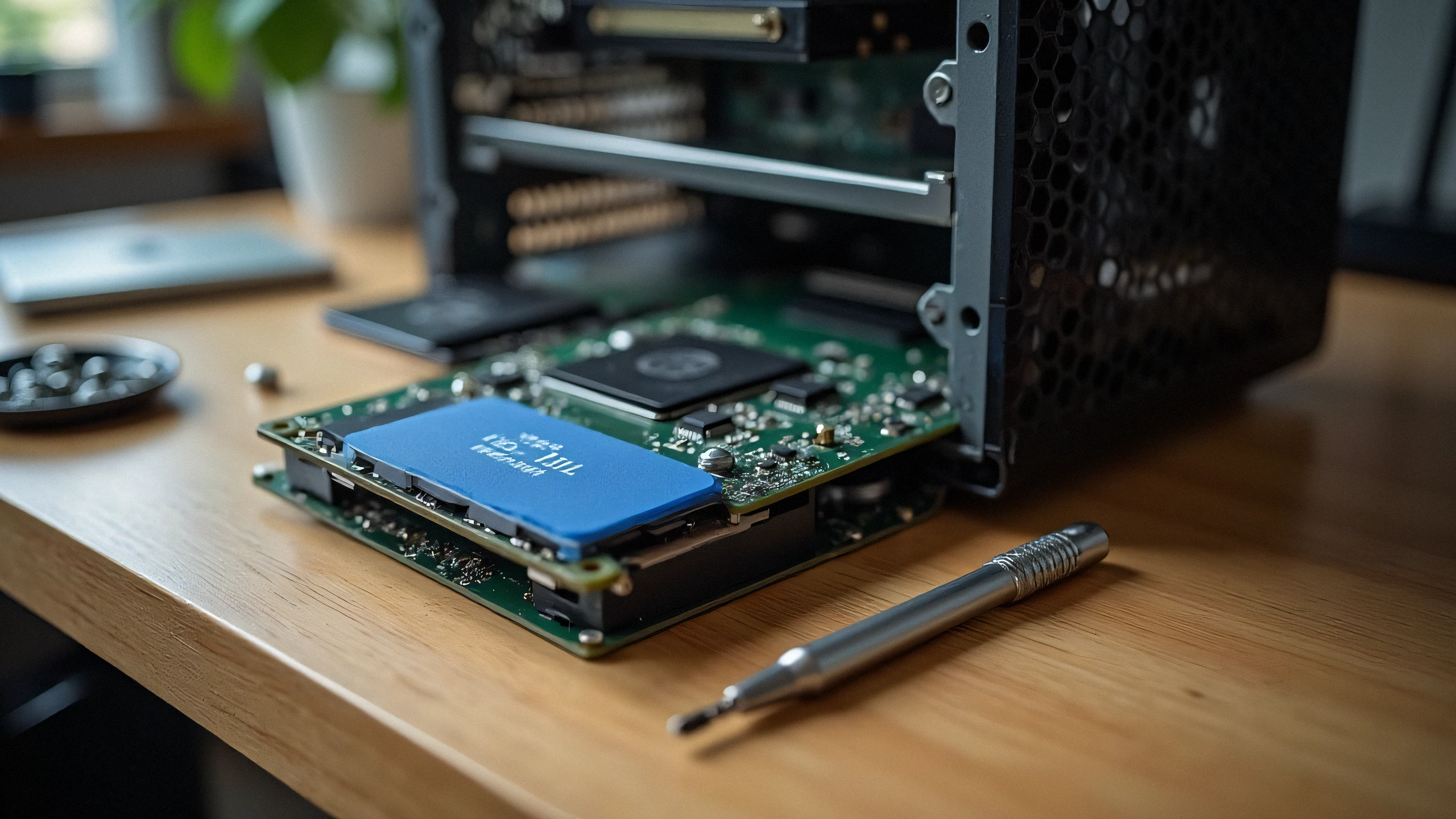
2K Ultra-HD Hardverska Dijagnostička Snimka
⚠️

Simptomi kvara i sažetak uzroka

Installed a brand new high-speed NVMe PCIe Gen 4 SSD into your 11th-14th Gen Intel laptop, but the Windows installation screen says "We could not find any drives"? The issue is rarely a hardware defect; it is Intel Volume Management Device (VMD) requiring the IRST storage driver.

Modern laptops with Intel Tiger Lake, Alder Lake, Raptor Lake, and Meteor Lake processors utilize Intel VMD (Volume Management Device) to manage NVMe lanes directly from the CPU. Because standard Windows 10/11 installation media does not contain the latest Intel VMD controller driver, the storage drive appears invisible during OS installation.

1. Two Proven Fixes:

Option A: Load Driver During Windows Setup (Recommended)

  1. Download the Intel RST (VMD) Floppy/F6 driver from your laptop manufacturer (Dell, ASUS, Lenovo, HP).
  2. Extract the driver folder onto your Windows USB installation drive.
  3. On the drive selection screen, click 'Load driver' -> Browse to the VMD folder -> Select 'Intel RST VMD Controller 9A0B'. The SSD will appear instantly!

Option B: Disable VMD in BIOS (Alternative)

  1. Enter BIOS (F2 or Del during startup).
  2. Navigate to 'Advanced' or 'System Configuration'.
  3. Find 'Intel VMD Controller' or 'VMD Technology' and toggle to [Disabled].
  4. Set SATA/NVMe Operation to [AHCI/NVMe]. Save and reboot.

2. Physical Checklist:

Ensure your M.2 SSD is seated fully into the M-key slot and secured with the retention screw without bending the PCB substrate.

✓ Konačna kontrolna lista servisera

100% Sigurni Koraci
1
Isključivanje napajanja i pražnjenje Isključite kabel za napajanje i držite gumb za uključivanje 30 sekundi kako biste ispraznili kondenzatore.
2
Čišćenje električnih kontakata (IPA 99%) Očistite pozlaćene kontakte EEPROM čipa i korona žicu krpom koja ne ostavlja dlačice i 99% izopropilnim alkoholom.
3
Poništavanje brojača i blokada Izvršite ručni postupak ponovnog postavljanja (Clear / OK) kako biste izbrisali upozorenja firmwarea.
✓

Povezani kompatibilni dijelovi

Službeni dijelovi potrebni za trajno rješenje
Samsung 990 PRO 2TB PCIe 4.0 NVMe M.2 SSD
OEM: MZ-V9P2T0B/AM Provjerite cijenu na Amazonu ↗
Kingston KC3000 1TB PCIe 4.0 NVMe SSD
OEM: SKC3000S/1024G Provjerite cijenu na Amazonu ↗
SanDisk Ultra 32GB USB 3.0 Flash Drive for Drivers
OEM: SDCZ48-032G-U46 Provjerite cijenu na Amazonu ↗
← Natrag na sve vodiče